10 Things to Consider When Choosing a Monitor Mount


Table of Contents
· How Can a Monitor Mount Improve Help You?
· The Three Main Types of Monitor Mounts
· Mechanical vs. Gas Spring Monitor Arm: What Is the Difference?
· Is Your Desk Compatible with a Monitor Mount?
· Common Desk Installation Mistakes to Avoid
· VESA Compatibility: Important Exceptions to Consider
· How to Choose the Right Weight Capacity?
· Check the Adjustment Range Carefully
· How to Prevent Monitor Arm Sagging
· Do Not Overlook Cable Management
A well-positioned monitor can make a noticeable difference in both comfort and productivity. Whether you are working, gaming, or building a cleaner desk setup, the right monitor mount helps create a more flexible and organized workspace. With so many options available, choosing the best one means looking beyond appearance and focusing on how it fits your monitor, desk, and daily use. In this guide, we look at 10 important factors to consider when choosing the best Adjustable monitor mount for your workspace.
1. How Can a Monitor Mount Improve Help You?
A monitor mount does much more than simply hold your screen. It improves the way you interact with your workspace by making your setup more comfortable, flexible, and organized.
Key benefits include:
· Better Ergonomics: Positions your screen at eye level to help reduce neck, shoulder, and back strain.
· More Desk Space: Lifts the monitor off the desk surface, giving you more room for keyboards, accessories, and daily tasks.
· Better Flexibility: Lets you adjust height, tilt, swivel, and viewing angle more easily.
· Cleaner Workspace: Reduces clutter and supports better cable organization.
· Higher Productivity: A more comfortable and efficient workspace can help you stay focused for longer periods.
In short, a monitor arm is not just an accessory. It is a practical upgrade that can improve both comfort and workflow.
2. The Three Main Types of Monitor Mounts
When comparing the types of monitor mounts, it helps to understand how each design works and what level of flexibility it offers. Most monitor mounts are available in both single-monitor and multi-monitor configurations, depending on your workspace needs.
a. Monitor Pole Mount
A pole-style monitor mount uses a fixed vertical column to support the display. It provides basic height adjustment and a clean, minimalist look. This type is best for users who do not need to reposition the monitor often and prefer a simple, stable setup.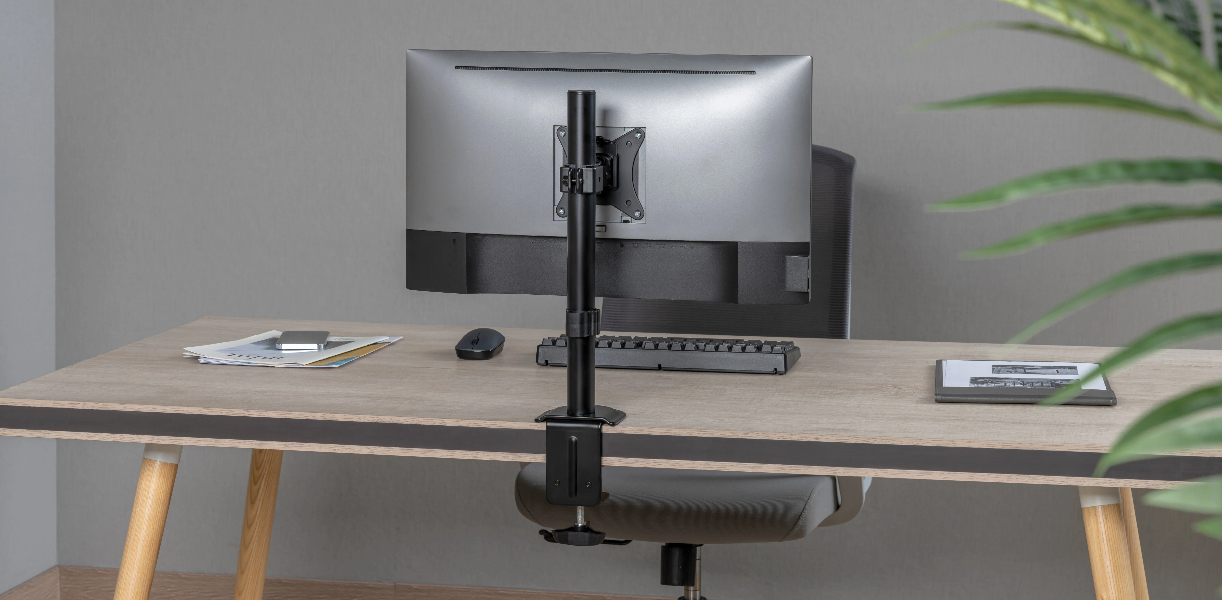
b. Articulating Arm Monitor Mount
An articulating arm includes multiple joints, allowing the monitor to move forward, backward, left, and right. This design offers more flexibility than a pole mount and is ideal for users who want to adjust their screen position throughout the day.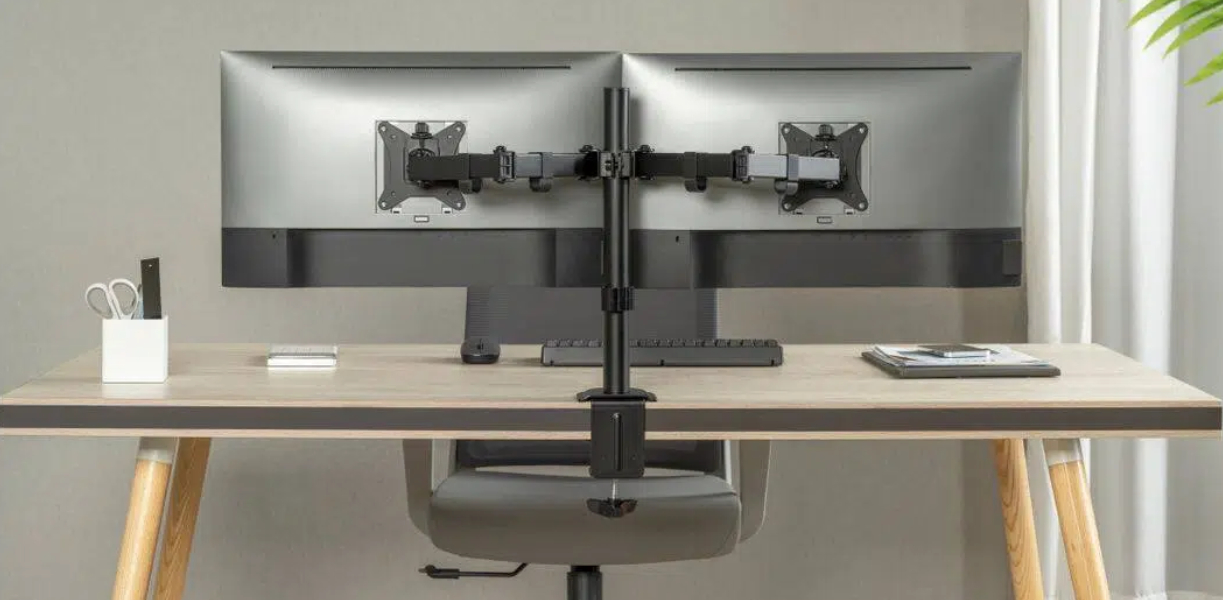
c. Full Motion Monitor Mount
A full motion monitor mount offers the widest range of movement. It is well suited for workstations that require frequent repositioning for different tasks, such as design work, collaborative meetings, entertainment, or multitasking. It is also a popular choice for dynamic multi-monitor setups.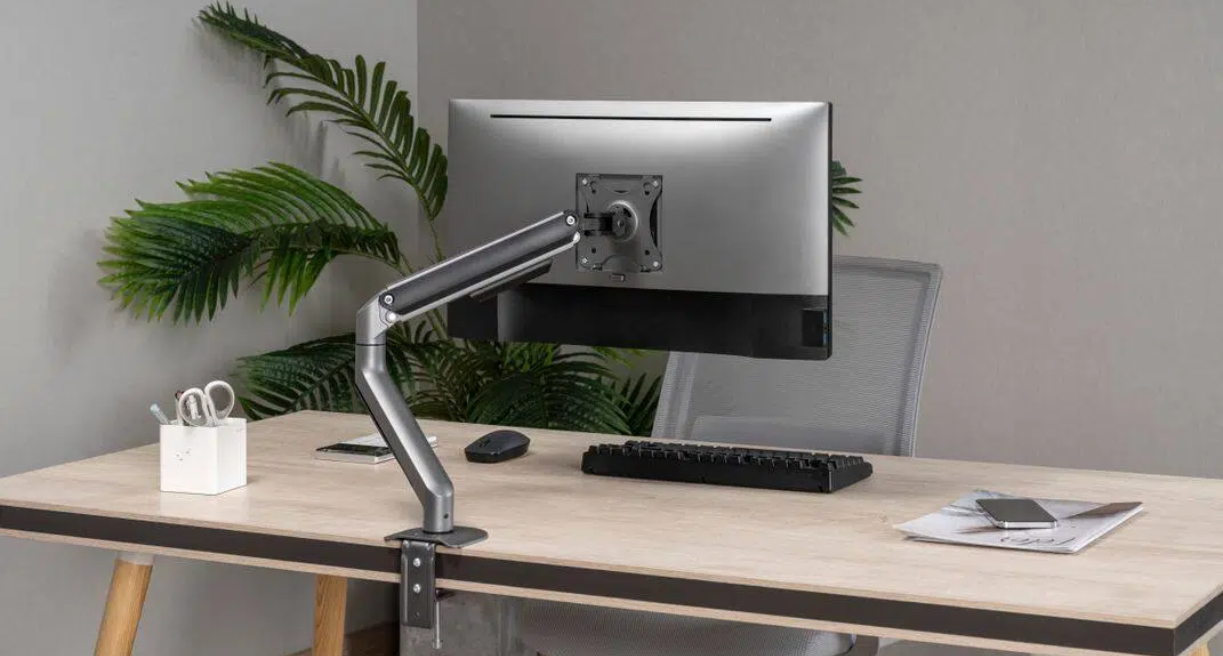
3. Mechanical vs. Gas Spring Monitor Arm: What Is the Difference?
Spring-assisted monitor arms generally come in two types: gas spring and mechanical spring. Understanding the difference can help you choose the right product for your daily usage.
|
Feature |
Gas Spring Monitor Arms |
Mechanical Spring Monitor Arms |
|
Adjustment System |
Gas-based counterbalance system |
Metal spring tension system |
|
Movement |
Smooth and effortless |
Controlled and firmer |
|
Adjustability |
High flexibility for frequent changes |
Moderate flexibility for occasional changes |
|
User Experience |
Easy repositioning throughout the day |
Stable positioning with more resistance |
|
Cost Level |
Usually higher |
More cost-efficient |
A gas spring monitor arm is often the better choice for users who want frequent, smooth movement. Mechanical spring arms, on the other hand, are a practical option for more static workspaces where the screen position does not change often.
4. Is Your Desk Compatible with a Monitor Mount?
Before buying a Monitor Mount, make sure your desk can support the installation method. Most monitor mounts use either a clamp or grommet system, but the best option depends on your desk structure, available space, and whether drilling is possible.
Key installation options include:
· Clamp Installation: This is the most common and convenient option. If there is at least 5 cm (2 inches) of clearance between the desk and the wall, and no major obstructions underneath, a clamp mount usually works well. It requires no drilling and is easy to reposition.
· Grommet or Cable Hole Installation: If your desk has a cable management hole, it may also support grommet mounting. Depending on the size and placement of the hole, some desks can support both clamp and grommet installation.
· Drill-Through Installation: If there is no cable hole and clamp mounting is not practical, a drill-through method may be required. This is a more permanent solution, so placement should be planned carefully. It is not ideal for fragile materials such as glass or stone.
· Alternative Options: If your desk cannot support either method, a freestanding monitor stand or wall-mounted arm may be a better choice.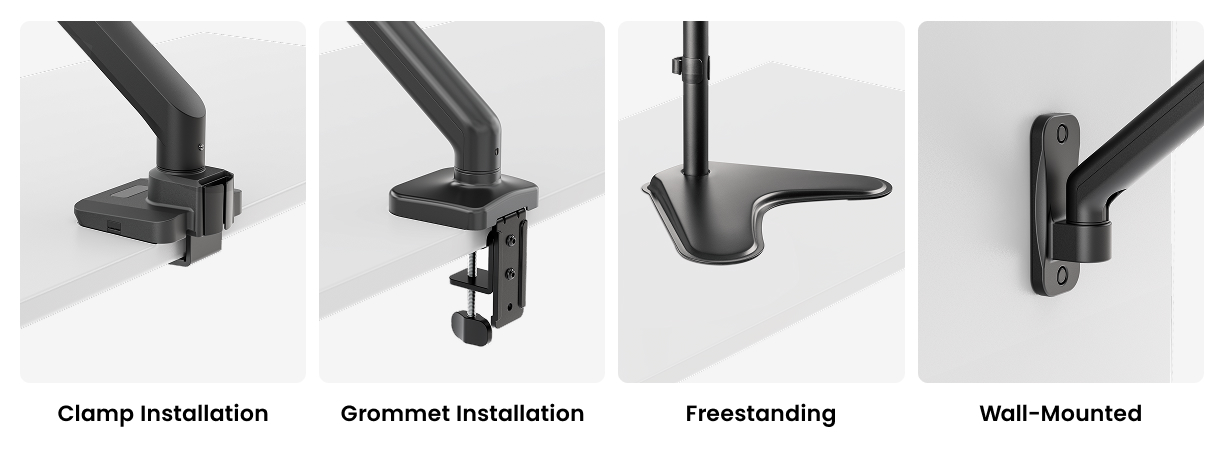
5. Common Desk Installation Mistakes to Avoid
Even the best adjustable monitor mount can perform poorly if the desk itself is not suitable. Paying attention to a few structural details can help prevent stability issues later on.
Desk Edge Shape
Heavily beveled or rounded desk edges can reduce clamp stability. A flat desk edge usually provides the most secure installation surface.
Under-Desk Obstructions
Support beams, drawers, or metal frames near the desk edge may interfere with clamp mounting. In such cases, a longer clamp arm, support block, or grommet installation may be necessary.
Desk Material
Some materials are not ideal for monitor arm installation. Glass, hollow-core desks, and soft tabletops may crack, compress, or become damaged under pressure.
6. VESA Compatibility: Important Exceptions to Consider
VESA compatibility is one of the most important things to verify before purchasing a monitor arm. VESA is the standard that defines the spacing between the mounting holes on the back of a monitor, ensuring that the display and mount can work together.
The most common patterns are:
· 75 x 75 mm
· 100 x 100 mm
These sizes fit most standard monitors, but there are several exceptions to keep in mind.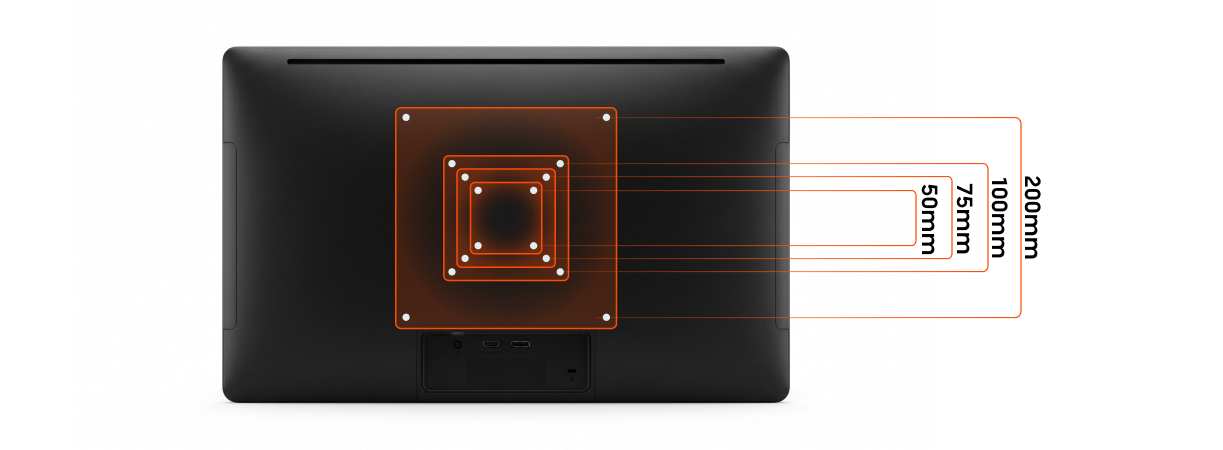
Larger or Smaller Screens
Depending on the monitor size, the VESA pattern may vary. Larger screens may use 200 x 200 mm, while some compact or older models may use 50 x 50 mm. In some cases, an adapter plate is required.
Brand-Specific Designs
Some displays, such as certain Apple iMac models, only support VESA mounting if a VESA-compatible version is selected at the time of purchase. A standard built-in stand may not be removable later.
Gaming and Performance Monitors
Some gaming monitors from brands like Samsung, Acer, and ASUS use recessed, reinforced, or non-standard VESA layouts. These may require dedicated adapter kits for secure installation. Always confirm VESA Compatibility before buying, especially for gaming, ultrawide, or premium monitors.
7. How to Choose the Right Weight Capacity?
Weight capacity is an important factor when choosing a Monitor Mount, as it affects both stability and long-term performance. The mount should support your monitor securely without operating at its maximum limit.
Here are a few things to consider:
· Monitor Size and Shape: Curved and ultrawide monitors often place more forward pressure on the arm because of their shape and center of gravity, which can increase the effective load.
· Additional Accessories: Be sure to include the weight of accessories such as webcams, monitor light bars, or speakers when calculating the total load.
· Safety Margin: Leaving a buffer of around 1–2 kg (2.2–4.4 lbs) helps ensure smoother adjustment and better durability over time.
· Balanced Capacity: Avoid choosing a mount that is either too weak or too strong. Insufficient capacity may lead to sagging, while excessive capacity can make adjustments feel stiffer and less precise.
A well-matched weight range provides the best balance of stability, flexibility, and everyday usability.
8. Check the Adjustment Range Carefully
A good adjustable monitor mount should match both your desk layout and your daily working habits. Before purchasing, review how far the arm can move and whether that range fits your workspace.
Forward Reach
Make sure the arm extends far enough for your desk depth and preferred viewing distance. On standard desks, this is important for achieving a comfortable screen position.
Height Adjustment
A monitor arm should offer enough height adjustment to place the screen in a comfortable viewing position. For most users, the top of the monitor should sit at or slightly below eye level, helping support a more natural posture and reduce strain during extended use.
Viewing Angle Flexibility
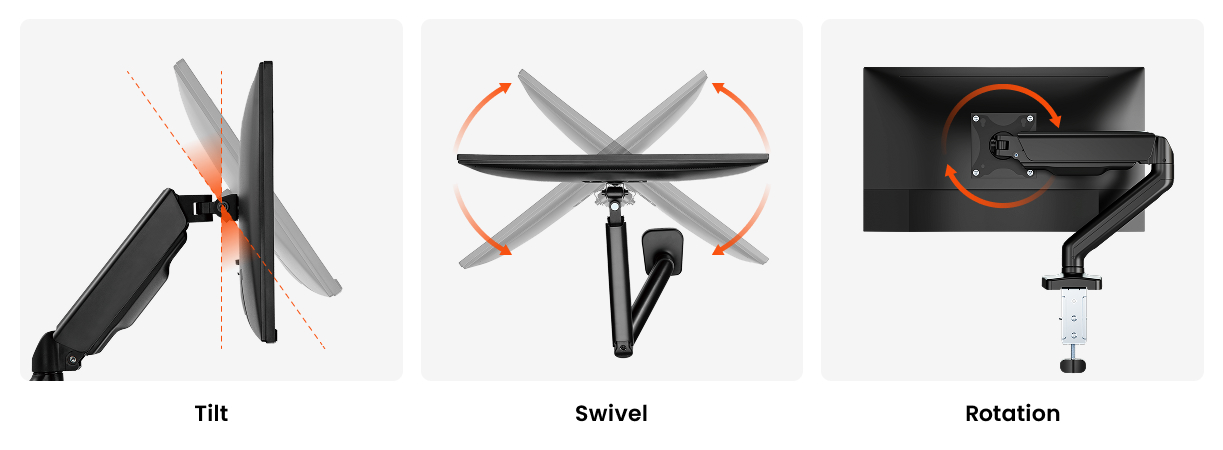
Most monitor arms allow basic tilt, swivel, and screen rotation. However, tilt range can differ from one model to another. For design work, illustration, editing, or detailed viewing, a wider tilt range may be especially helpful.
L-Shaped or Corner Desks
For corner workstations and L-shaped desks, arm reach becomes even more important. A longer arm provides better flexibility when positioning the monitor across different zones of the desk.
Movement Limits and Clearance
If your desk sits close to a wall or cabinet, check whether the arm includes movement stops or rotation limits. These features can help prevent accidental contact and improve control in smaller spaces.
9. How to Prevent Monitor Arm Sagging
One common concern when buying a monitor arm is long-term sagging. While no product is completely immune to wear, choosing the right design can reduce the risk significantly.
Choose Durable Mechanisms
Lower-cost monitor mounts often rely on friction-based tilt systems. These may work well at first, but over time, the friction surfaces can wear down and lead to reduced stability. Spring-assisted systems usually offer more consistent support and smoother long-term performance.
Be Cautious with Heavy-Duty Arms
A higher weight rating does not always mean better real-world usability. Some heavy-duty models built for ultrawide displays require very high tension to hold position, which can make adjustment more difficult. Reading user reviews can help you identify products that balance strength with ease of movement.
10. Do Not Overlook Cable Management
Cable management is often treated as a small detail, but it has a big impact on the final look and usability of your setup. Most modern monitor arms include built-in cable channels or clips that route wires neatly along the arm.
When evaluating cable management, think about your specific setup:
· For monitors that move often, longer cables provide more flexibility and reduce strain during adjustment.
· For fixed setups, shorter cables help reduce slack and keep the desk looking clean.
· For multi-monitor arms, organized cable routing is even more important because multiple power and display cables can quickly create clutter.
Good cable management not only improves appearance but also makes the entire workspace feel more professional and easier to maintain.
Conclusion
Choosing the right monitor mount is ultimately about creating a setup that feels comfortable, stable, and practical for everyday use. A well-matched mount can improve posture, support smoother movement, and help keep your desk organized over time. If you are exploring reliable solutions for different workspace needs, Brateck offers a wide range of monitor mounts and ergonomic workspace products through its official website. If you are exploring reliable solutions for different workspace needs, explore Brateck to find a setup that fits your screen, desk, and workflow.